
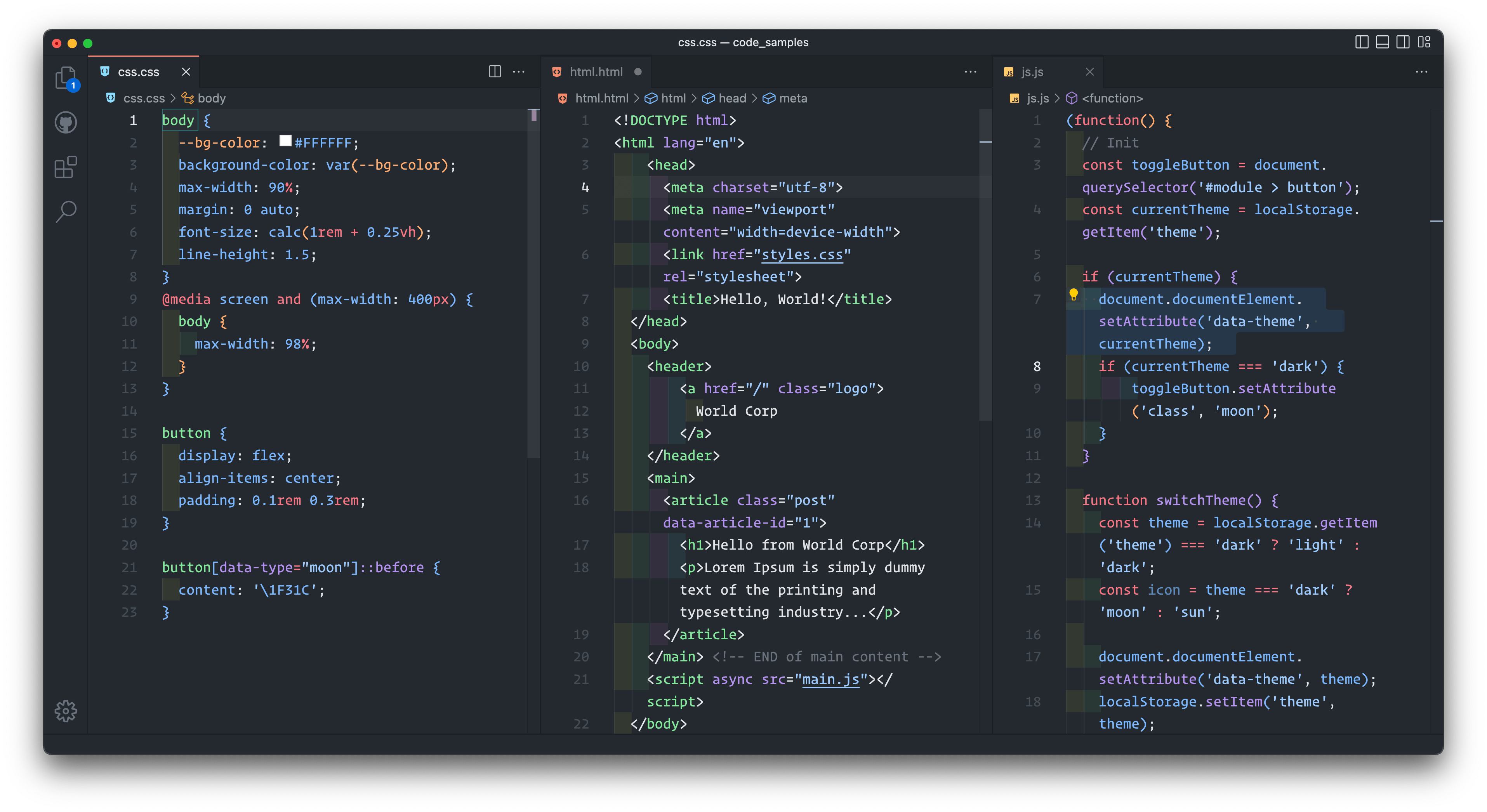
It's one of the most common questions I hear from developers and agency owners: "Can I convert this HTML site directly into Elementor without rebuilding everything from scratch?" The short answer is yes — and the honest answer is that "directly" covers about five very different methods, ranging from a thirty-second paste to a full professional rebuild, and the results they produce have almost nothing in common. I've watched people pick the wrong method for their situation more times than I can count: the freelancer who pasted a whole site into HTML widgets and then wondered why the client couldn't edit anything, or the agency that paid for a pixel-perfect manual rebuild of a page nobody ever needed to touch. This guide lays out every realistic method, what each one actually produces, what it costs in time and money, and how to choose. By the end you'll know exactly which path fits your project — and which ones to avoid.
Why Copy-Pasting Raw HTML Fails (The Way Most People Try First)
Almost everyone starts here: copy a chunk of markup, drop it into Elementor's HTML widget, paste the CSS into the custom CSS panel, and hope. The page renders — I'll give it that — and for about ten minutes it feels like the conversion worked. Then reality arrives in stages. First, the client tries to change a headline and discovers there's nothing to click: an HTML widget is a sealed box, and everything inside it — text, colors, spacing, links — is invisible to Elementor's editing panels. Second, the styles start fighting. The pasted CSS was written assuming it owned the page, but now it shares the page with the WordPress theme, Elementor's kit styles, and the admin bar, and class names collide in ways that look fine in the editor and break on the live site. Third, responsive behavior fragments: the original media queries use the template's breakpoints while Elementor's tablet and mobile controls use its own, so the page is responsive in two different systems that don't agree with each other. Fourth, anything JavaScript-driven — sliders, tabs, animated counters — was initialized against the original page structure and often silently fails when transplanted. Copy-paste isn't a conversion method. It's a screenshot with extra steps. Fine for a prototype you need to show in an hour; not a deliverable.
Method 1: The Manual Rebuild (The Gold Standard)
The method every professional actually uses is the least glamorous: rebuild the page section by section with native Elementor containers and widgets, using the original HTML as a visual reference rather than as source material. A heading becomes a Heading widget. A paragraph becomes a Text Editor widget. Layout wrappers become flexbox or grid containers. Colors and type go into the global kit first, so the whole page references shared design tokens instead of hardcoded values. Done properly, the result is pixel-faithful to the original and fully editable — the client can change any text, swap any image, adjust any spacing through the sidebar panels, and the responsive views work through Elementor's own breakpoint system.
The cost is time and skill. A simple landing page might take a few focused hours; a complex multi-section site with custom interactions can take days. This is also what the professional conversion services on freelance marketplaces are selling — listings typically run around ₹800–1000 per page from experienced providers, with deliverables spelled out as native widgets, clean section naming, responsive testing across browsers, and no external CSS dependencies. If the page matters to the business and the client needs to edit it, this is the method. Everything else is a compromise you should make consciously, not by accident.
Method 2: Capture-and-Paste Tools (Fast, But Know What You're Getting)
There's a popular class of browser extensions built for exactly this itch: open the HTML page (or any live website), click capture, and paste the result into Elementor — sometimes through its cross-site paste feature — with images carried along. The workflow tutorials walk through the setup: enabling unfiltered file uploads in Elementor's settings, adding SVG support, configuring the theme's container settings, hiding the page title, and publishing. It genuinely works, and for cloning a layout quickly it's impressive.
Here's the catch you need to understand before choosing it: captured content arrives as HTML blocks, not native widgets. You've automated the copy-paste method from the previous section — faster, with images handled — but you have not produced an editable Elementor page. The client still can't click-to-edit anything. I recommend this method for exactly two situations: whipping up a quick staging demo, or importing a layout you fully intend to rebuild natively afterward, using the captured version as a pixel reference sitting right there in the editor. As a final deliverable for a client who was promised "an Elementor site they can edit," it's a trap.
Method 3: AI-Assisted Conversion (The New Middle Path)
The most interesting development in the last year is a generation of tools that convert finished HTML files into real builder pages through a direct site connection. You provide the complete HTML file, the tool analyzes the structure, writes the page into WordPress as native Elementor elements, carries the stylesheet's intent along, and reports a fidelity breakdown — how much became genuine widgets versus raw markup blocks, whether all images resolved, what had to be dropped. Some integrations go further: an AI assistant reads your file, proposes a section-by-section widget map for your approval, then builds the page on your site through a connector, pausing for confirmation on long builds.
My take after watching these tools mature: they're the best middle path available now — dramatically faster than a manual rebuild, dramatically more editable than capture-and-paste. But they're first-draft machines, not finishers. The honest ones tell you when a page came back mostly as raw markup, which is the tool's way of saying "this design needs human judgment." Budget time to review the output section by section, rebuild the awkward parts natively, and run the responsive pass yourself. Used that way — AI draft, human finish — this method is becoming my default recommendation for straightforward marketing pages.
Method 4: Custom Widgets for the Hard Parts
Every conversion hits components that resist all the automated approaches: the pricing toggle with animated state switching, the bespoke testimonial slider, the interactive calculator, the before/after image comparison. For these, the professional answer is a small custom Elementor widget built in PHP — a class extending Widget_Base with editing controls registered for everything the client should be able to change, and the original markup preserved in the render method. This isn't a separate conversion method so much as the finishing technique that the other methods need: the manual rebuild uses custom widgets for bespoke components, and the AI-assisted draft gets its rough edges replaced with them. If you're hiring this out, "custom widgets for interactive components" is one of the phrases that separates a real conversion specialist from someone who'll paste everything into HTML widgets and call it done.
Choosing the Right Method: An Honest Comparison
Let me put the trade-offs plainly, because this is the decision the whole article is building toward. Manual rebuild gives you the best result — fully editable, clean, maintainable — at the highest cost in time or money. Choose it for client sites, high-traffic pages, and anything the business depends on. Capture-and-paste gives you the fastest result at the lowest quality — a visual clone with no editability. Choose it for internal demos, quick staging, or as scaffolding you'll rebuild. AI-assisted conversion sits in the middle — fast first draft, real widget structure, needs human review and finishing. Choose it for standard marketing pages when you're comfortable doing the final pass yourself. Custom widget development isn't competing with the others; it's the specialist tool you deploy for the components the other methods mangle.
Two questions settle it in practice. First: does a non-technical person need to edit this page after delivery? If yes, anything that produces HTML blocks is disqualified — you need native widgets, whether built by hand or by an AI tool you finish properly. Second: how bespoke is the design? A standard hero-features-testimonials-footer page converts cleanly with assisted tools; a page full of custom interactive components needs the manual rebuild plus custom widgets, and no shortcut will survive contact with it.
The Workflow That Ties It Together
Whichever method you choose, the surrounding workflow is the same, and skipping it is where conversions quietly fail. Start with the Hello Elementor theme — the official blank-canvas theme, free and minimal, so nothing in the theme fights your converted page — and build converted pages on the Elementor Canvas template, which strips the theme header and footer for full-viewport designs. Set up global colors and fonts in Site Settings before building anything, so the conversion references shared tokens. Import every image into the media library with proper alt text instead of hotlinking template assets, and re-register custom fonts and icon libraries through WordPress rather than relying on the template's original paths. Name your containers and sections by purpose — "Hero," "Pricing Grid," "Footer CTA" — because the next person to open this page will thank you. Then do the responsive pass deliberately on tablet and mobile, regenerate Elementor's CSS files from the Tools menu, clear all caches, and test on a real phone. That checklist is unglamorous and it's the difference between a conversion that ships and one that embarrasses you.
Conclusion
So, can you convert HTML to Elementor directly? Yes — but "directly" is doing a lot of heavy lifting in that sentence, and now you know exactly how much. Copy-pasting markup into HTML widgets is fast and produces something nobody can edit. Capture tools automate that paste but don't change what it is. AI-assisted converters produce a genuine first draft of native widgets that still needs your review and finishing. And the manual rebuild — section by section, styles in the kit, bespoke components as custom widgets — remains the gold standard for anything that matters. The right method isn't the fastest or the most impressive; it's the one whose output matches what the page's future demands. Ask who edits it next and how strange the design is, pick accordingly, and run the workflow checklist either way. Do that, and "convert this HTML to Elementor" stops being a gamble and becomes a process you can quote, schedule, and deliver with confidence.
Frequently Asked Questions
Can I convert HTML to Elementor without rebuilding from scratch?
Partly. Browser capture extensions and newer AI-assisted converters can produce a working Elementor page from existing HTML quickly, but the output always needs review — and capture tools produce HTML blocks rather than editable widgets, so "without rebuilding" usually still involves significant finishing work.
How much does professional HTML-to-Elementor conversion cost?
Freelance specialists typically charge around ₹800–1000 per page for a proper native-widget rebuild with responsive testing, though complex pages with custom interactive components cost more. Always confirm the deliverable is native widgets — not pasted HTML — before hiring.
Will my converted page be responsive?
Only if someone rebuilds the responsive behavior deliberately. The original HTML's media queries and Elementor's breakpoint system use different values, so responsiveness has to be re-implemented in Elementor's per-device controls and verified on tablet and mobile — it doesn't transfer automatically.
What theme should the converted site use?
Hello Elementor, the free official theme from the Elementor team. It's a minimal blank canvas designed to stay out of the page builder's way, and its Canvas page template gives converted landing pages the full viewport they were designed for.
Can Elementor import its own exported templates?
Yes — Elementor supports saving pages and sections as templates and importing/exporting them as JSON files. This is useful for reusing converted sections across pages or moving a finished conversion between sites, but it only helps once the conversion itself is done properly.