
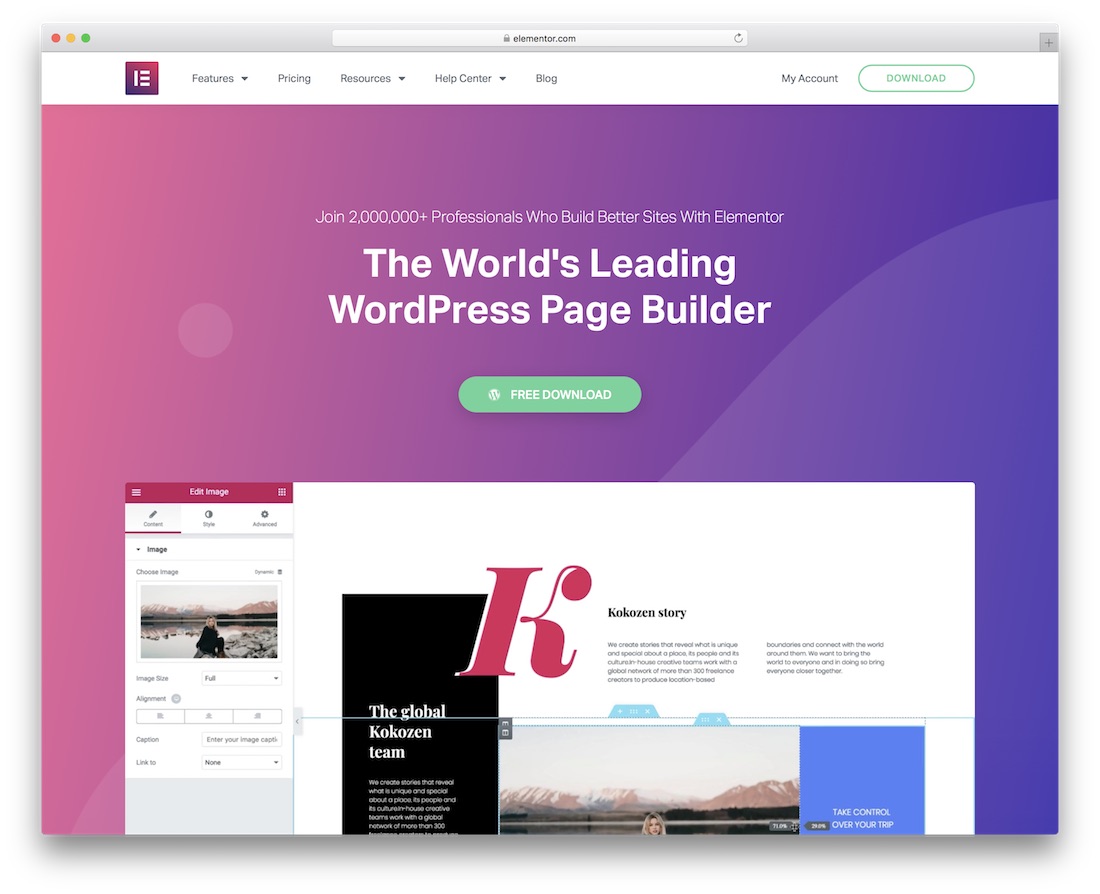
Almost every developer who works with clients has had this conversation. A client comes to you with a beautiful static HTML website — fast, hand-coded, pixel-perfect — and then says the magic words: "Can you put this in Elementor so my team can edit it themselves?"
And just like that, your clean, lightweight HTML site is about to become a WordPress project.
I've handled dozens of these conversions over the years, and here's the uncomfortable truth most tutorials won't tell you: converting HTML to Elementor is rarely a 1:1 technical exercise. It's a translation job. You're taking a static document and turning it into an editable system, and every decision you make along the way trades off between pixel-perfection, performance, and how easy the site is for the client to actually use once you hand it over.
This guide walks through the three approaches that actually work in 2026 — the manual rebuild, the automated conversion route, and the hybrid method that, in my experience, wins about 80% of the time.
First, Understand How Elementor Stores Pages (This Changes Everything)
Before touching a single line of code, you need to understand one fundamental thing: Elementor does not store pages as HTML. When you click "save" in the Elementor editor, your page is serialized into a structured JSON tree and saved in the WordPress database under the post meta key _elementor_data.
Each element in that tree has an elType (container, or in older pages, section/column), a widgetType for widgets, a settings object holding all the styling, and a nested elements array for children. Elementor then compiles the whole thing into cached CSS and rendered output on save.
Why does this matter for your conversion? Because it means there is no "HTML import" button that reads your markup and spits out an editable page. Any conversion process — manual or automated — has to translate your HTML into Elementor's widget vocabulary. A <section class="hero"> becomes a Container widget with a background setting. Your <h1> becomes a Heading widget. The browser doesn't care; Elementor's data model does.
Elementor ships this architecture in its free plugin, which as of October 2026 sits at version 4.3.4 with over 10 million active installs. The free version covers page-level building well, but if your HTML template needs custom headers, footers, or dynamic archive layouts, you'll need Elementor Pro — which starts at about $60 per year for a single site (the Essential plan) or $84 per year for the Advanced Solo plan that unlocks the full feature set. Budget for that license when you quote the client; I've seen too many freelancers eat that cost because they forgot to include it in the estimate.
Method 1: The Manual Rebuild (Slow, Precise, and Often Correct)
The manual route is exactly what it sounds like: you set up WordPress with a clean base theme — the free Hello Elementor theme is the standard choice because it's essentially a blank canvas with no styling of its own — install Elementor, and rebuild each page section by section using the drag-and-drop editor.
It's tedious. A typical 5-to-8 page marketing site takes anywhere from 15 to 30 billable hours this way, depending on how fancy the animations and layouts are. But it produces the cleanest result, and for an important reason: you make human judgment calls at every step. That absolutely-positioned decorative blob in the original design? In Elementor it becomes a properly responsive element instead of a breakpoint nightmare. That 47-line CSS animation? You rebuild it with Elementor's motion effects, and suddenly the client can tweak the timing themselves.
The manual rebuild is the right call when:
- The site is small (under 10 pages) and the client expects heavy ongoing editing.
- The original HTML has messy, hand-written CSS that you honestly don't want to preserve.
- The client asked for the site to be improved during migration, not just copied.
- You need the final page to score well on Core Web Vitals and you want full control over the DOM.
My honest opinion: for most client work, this is the method I'd recommend to a friend. It costs more hours upfront, but you end up with a site the client can actually maintain, which is the whole point of the exercise. An automated conversion that produces a page the client is afraid to touch has failed its primary goal.
Method 2: Automated and Semi-Automated Conversion
If the site is large — say 30+ pages — a full manual rebuild stops making economic sense. That's where automation comes in. The landscape here is a mix of third-party tools, custom scripts, and a healthy dose of manual cleanup.
The general approach: a script parses your HTML, identifies repeating patterns (headers, heroes, card grids, footers), and generates Elementor template JSON that you import into WordPress. Since Elementor templates are just JSON files with a content array of elements, this is technically straightforward — the hard part is making the mapping intelligent. A naive converter dumps everything into HTML widgets, which "works" but gives the client an uneditable wall of code. A good converter maps to native widgets: headings to Heading widgets, images to Image widgets, and so on.
In practice, here's how automated projects usually go: the tool gets you 60-70% of the way there, and you spend the remaining time fixing what it got wrong. Common casualties include custom JavaScript interactions (carousels, tabs, accordions), responsive behavior that was fine in raw CSS but breaks in the widget model, and forms, which need to be rebuilt with Elementor's Form widget or a dedicated form plugin.
One thing I always tell people evaluating this route: judge a conversion tool by its output editability, not by how fast it runs. A tool that converts 50 pages in an hour but produces unmaintainable pages just moved the cost from your build phase to your client's maintenance phase. That's not a saving; it's a deferred complaint.
Method 3: The Hybrid Approach (What Most Professionals Actually Do)
Here's what I'd actually do on a real project, and what most experienced agencies do: split the site into two categories.
Unique, high-value pages — the homepage, the landing pages, anything the client edits weekly — get the manual rebuild treatment. You want those pages clean, fast, and genuinely editable.
Repetitive, low-touch pages — terms of service, privacy policy, old blog posts, documentation pages — get converted semi-automatically or even just pasted into Elementor's Text Editor widgets. Nobody is redesigning the privacy policy every quarter; it doesn't need a pristine widget tree.
This split usually lands the project at roughly half the hours of a full manual rebuild while keeping the pages that matter in great shape. It's the pragmatic middle ground, and frankly, it's what I'd quote in a proposal: "critical pages rebuilt by hand, supporting pages migrated efficiently." Clients understand that framing immediately.
Performance: Don't Let the Conversion Kill Your Speed
This is where HTML-to-Elementor projects most often go wrong. The original static site probably loaded in under a second. After conversion, it's not unusual to see 3-4 second loads and angry red scores in PageSpeed Insights. Here's how to prevent that.
First, use Flexbox containers, not the legacy sections-and-columns structure. Elementor replaced the old nested section/column model with containers a while back, and containers produce significantly leaner markup. If you're building fresh in 2026, there is no reason to use the old structure.
Second, be ruthless about widgets. Every widget you add is DOM weight and CSS. If a "fancy" widget does what a heading plus a button can do, use the heading and the button. Third, optimize the media during conversion — convert hero images to WebP or AVIF, set explicit width and height attributes (this alone fixes most Cumulative Layout Shift problems; Google wants CLS at or below 0.1), and don't upload 4MB PNGs because "the original site had them."
Finally, enable Elementor's built-in performance features: improved CSS loading, optimized DOM output, and lazy loading for below-the-fold images. These are toggles, not code — there's no excuse for leaving them off.
Mistakes I See on Almost Every First Conversion
- Pasting entire pages into a single HTML widget. It looks identical and takes ten minutes, but the client can't edit anything. You've built a static site with extra steps.
- Keeping the original CSS file enqueued alongside Elementor. This causes specificity wars between your old stylesheet and Elementor's generated CSS. Translate the styles into widget settings instead.
- Forgetting global styles. Set your fonts, colors, and button styles in Elementor's Site Settings once. If you style every heading individually, the client's first edit will break the design system.
- Not testing at real mobile breakpoints. Elementor's responsive controls are good, but only if you actually open them. Check tablet and mobile on every converted page.
- Skipping the client's editing walkthrough. Budget an hour to record a Loom video showing them how to edit text, swap images, and not break the layout. This single step prevents half of all "the site is broken" support tickets.
Conclusion
Converting an HTML website to Elementor is fundamentally a translation project, not a copy-paste one. The technology side — understanding the _elementor_data JSON structure, choosing between manual, automated, and hybrid methods, keeping performance intact with containers and optimized media — is the easy part. You can learn all of it in a weekend.
The hard part is judgment: knowing which pages deserve a careful manual rebuild, which ones can be converted quickly, and when to tell a client that their 2014-era jQuery carousel isn't surviving the migration. Get those calls right, and the result is something genuinely better than the original — a site that looks the same but can evolve without a developer on retainer.
My rule of thumb after years of these projects: if the client will edit the site weekly, rebuild the important pages by hand. If it's a big archive nobody touches, automate it. And whatever you do, set the global styles first, test on mobile, and record that walkthrough video. Future-you will be grateful.
Frequently Asked Questions
How long does it take to convert an HTML site to Elementor?
A small 5-page site takes roughly 15-30 hours for a quality manual rebuild. Larger sites using a hybrid approach scale more like 2-4 hours per unique page template, with repetitive pages converting much faster.
Can I convert HTML to Elementor without losing SEO rankings?
Yes, if you're careful. Keep the same URL slugs, preserve heading hierarchy (one H1 per page), carry over meta titles and descriptions, and set up proper 301 redirects for any URL that changes. The bigger SEO risk is performance regression, so watch your Core Web Vitals after launch.
Do I need Elementor Pro for the conversion?
Not always. The free plugin handles page content fine. You need Pro if the original site has custom headers, footers, archive layouts, or popups — anything outside the page content area. Pro starts around $60/year for one site.
Will the converted site be as fast as the original HTML site?
Honestly? Probably not quite — WordPress and a page builder add overhead that raw HTML doesn't have. But with Flexbox containers, optimized images, and Elementor's performance settings enabled, you can get very close, and comfortably into Google's "good" Core Web Vitals thresholds.